

Global Blocks are a powerhouse feature within Breakdance. They can display static content across multiple pages, within the WordPress editor via a Shortcode, create layouts and content for data in Loop elements, and be used in many other elements as applicable.
One of the best features about Global Blocks is that when you update the Global Block, any pages, templates, or content that uses that Global Block will be automatically updated.
Global Blocks can be created by going to Breakdance > Global Blocks in the WordPress admin area, or using the Quick Navigator. After you create the Global Block, you can then open the Global Block and add content to it, or use inline editing to edit a Global Block within another design.
You can add any content you’d like to a Global Block. You may be creating a Global Block that uses static or non-dynamic content, such as a Static item or a When Empty item, or, you could be trying to display the posts’ content or custom fields within a Loop element. Whatever the case may be, the elements you add to the Global Block
When working on a Global Block, you can use the preview settings in the Quick Navigator to choose what content is being previewed within the Global Block.
While editing a Global Block you’ll be able to use the Preview Size control to adjust how you are viewing the content. The Preview Size settings are only used when editing a Global Block and are not used when displaying the Global Block.

When working on a page or template, you can edit a Global Block inline. This makes it easy to create new blocks or edit an existing Global Block without disrupting your workflow.
There are two ways to start inline editing:
To exit inline editing you can perform one of the following:
Once you exit inline editing, your changes will be saved and you’ll see the changes reflect in the design.
While editing Global Blocks inline, you won’t be able to use Preview Size settings as the Global Block is already shown within the intended design.
There are several different ways to use Global Blocks on your website.
When you are working on a design within Breakdance’s builder, you can use the Global Block element to display a Global Block within that design. Any changes you make to the Global Block will then automatically update on the front end.
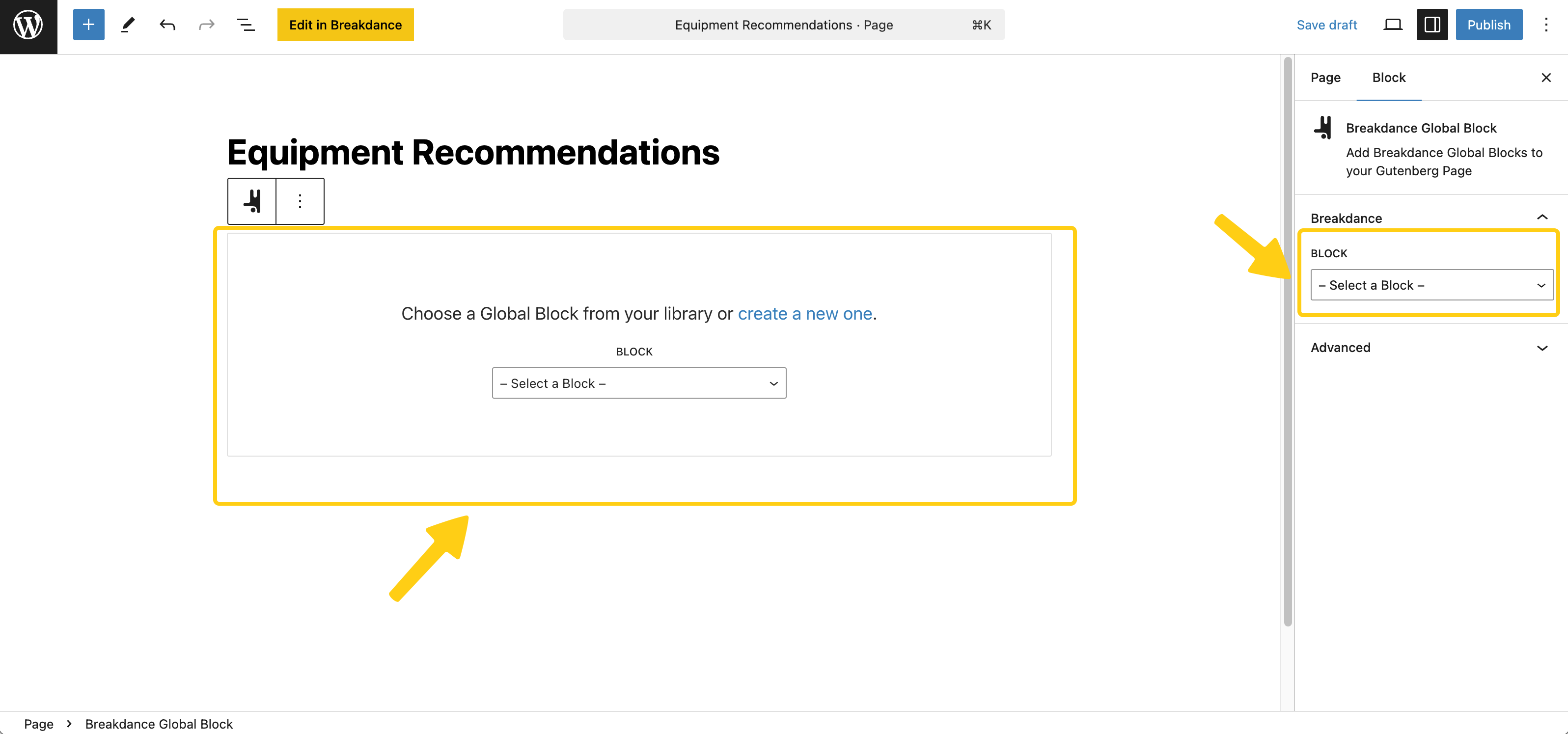
Similar to the Global Block element, you can use the Breakdance Global Block in Gutenberg to display your content. After you add the block in Gutenerg, you’ll then be able to select the Breakdance Global Block you wish to use either directly within the editor or through the settings for the block in the sidebar.
You can also copy the shortcode for a Global Block to use it in the Classic Editor for WordPress or for other specific use-cases. To find the Shortcode for a Global Block, go to Breakdance > Global Blocks in the WordPress admin area and copy the shortcode for the target Global Block from the list.
Many elements within Breakdance allow you to select Global Blocks to be used within that element. The most common case for this is Loop elements, but there are a variety of other Breakdance elements that allow you to use a Global Block.